All guides
Download the workbook and close the week
Check the totals, download the Excel workbook, and close the week so it can't change by accident. · Payroll
Watch it
Step by step
Step 1: Check the week's hours
The week page totals each person's paid time, breaks and anything still flagged. Click a name for that person's timecard.
See the whole screen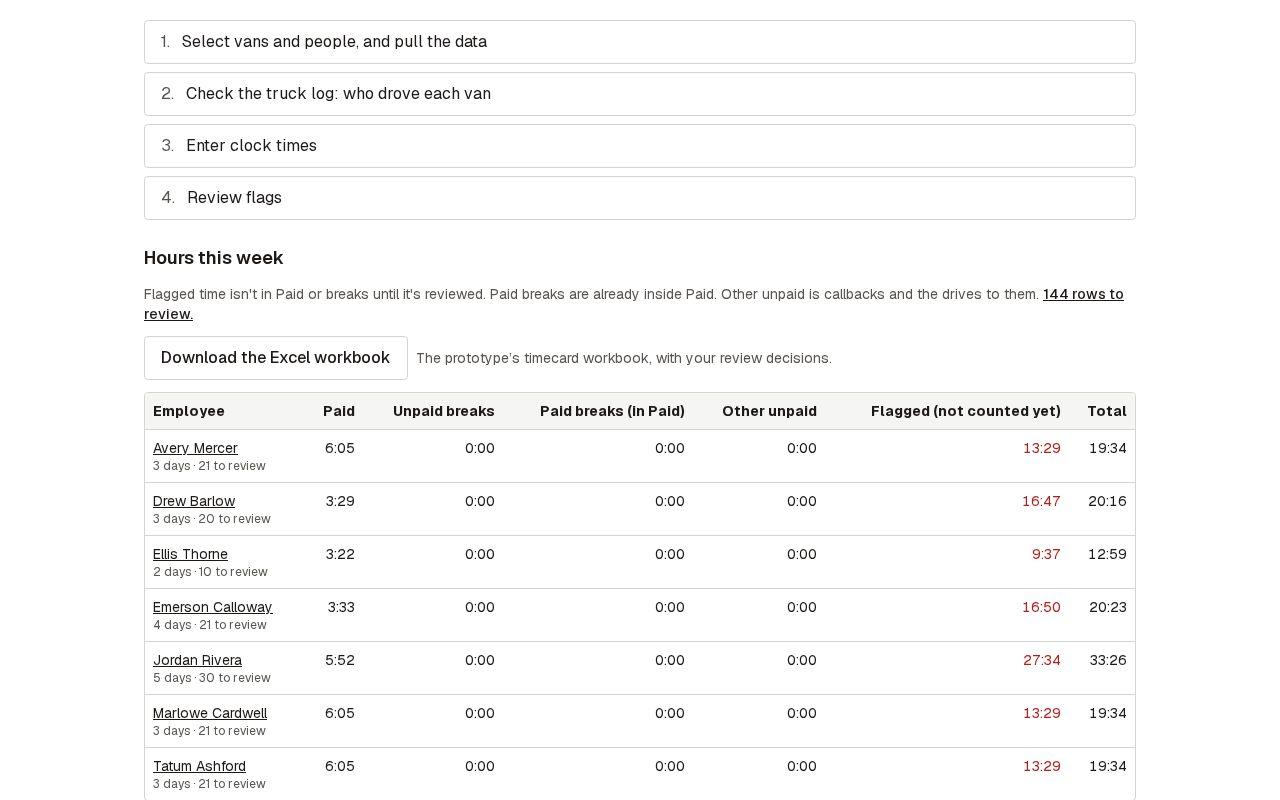
Step 2: Download the Excel workbook
The workbook has the same sheets as the desktop tool's, with your review decisions filled in.
See the whole screen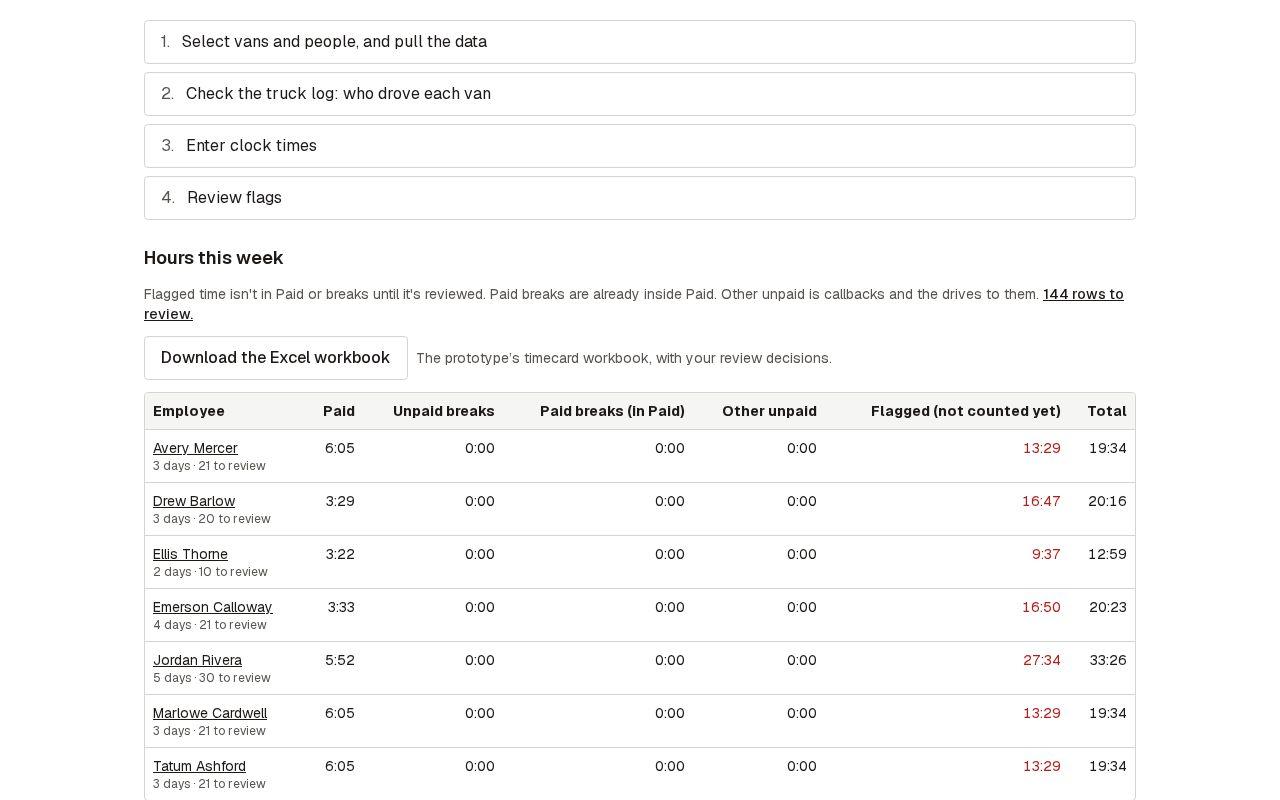
Step 3: Close the week
When payroll is done, open Close this week. It lists anything not finished yet. Closing keeps a copy of the week and its workbook, and stops changes by accident.
See the whole screen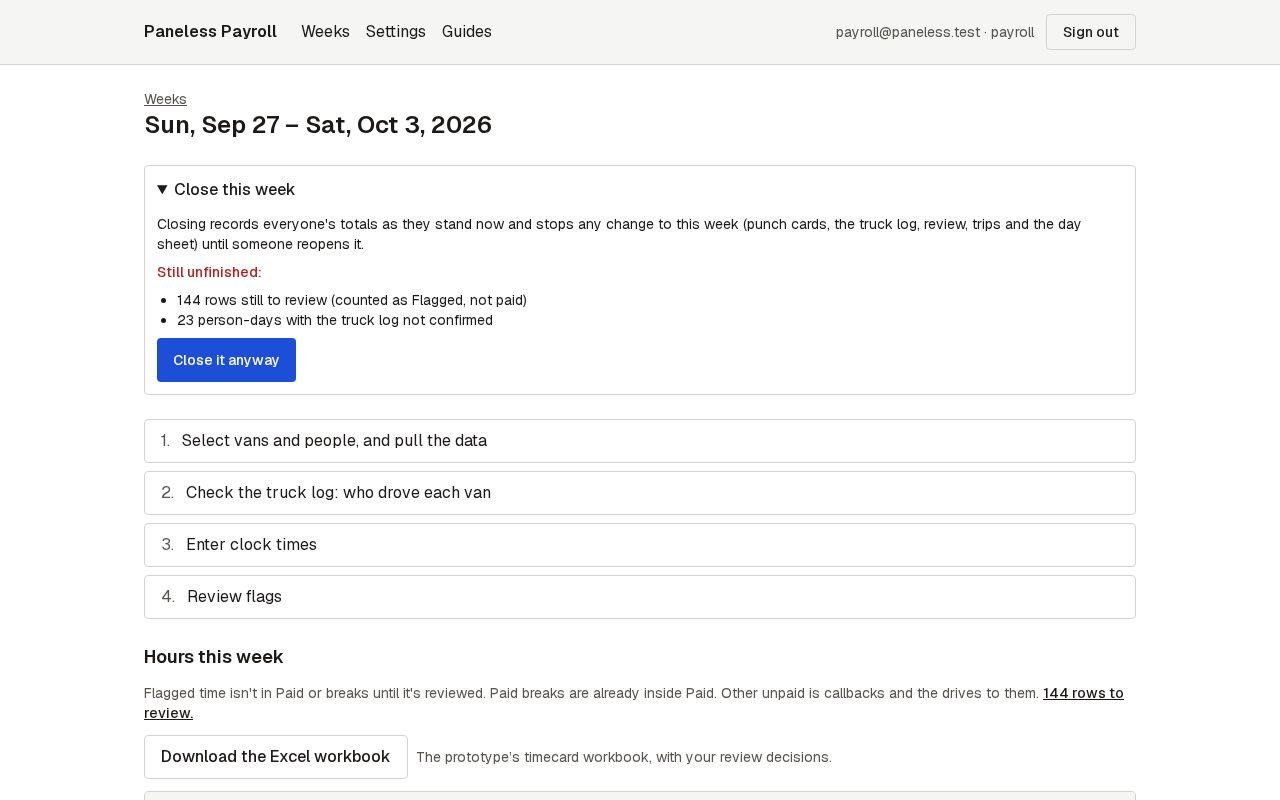
Step 4: It shows as closed
The weeks list marks it Closed. Opening it later shows the week as it was when you closed it.
See the whole screen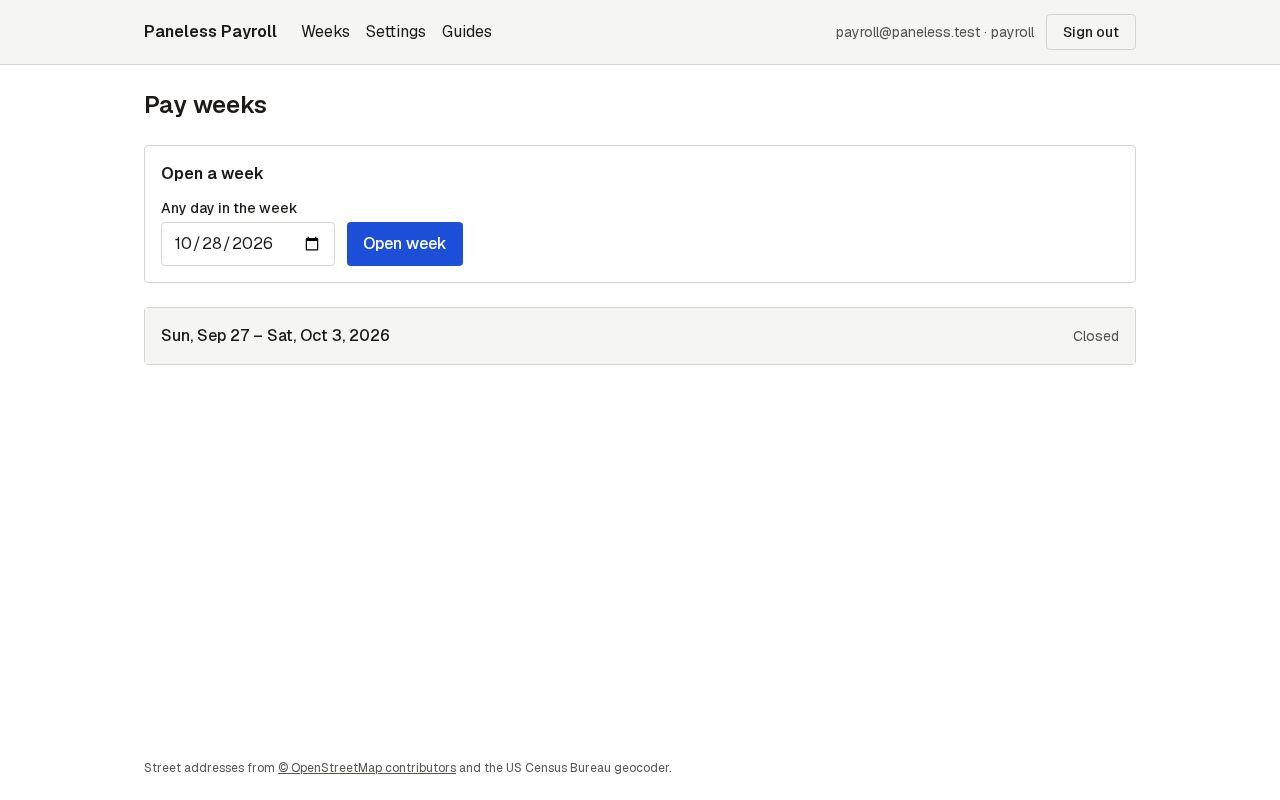
Step 5: Reopen it if something changes
Reopen to make changes lets you fix a closed week; the copy kept at the close stays too.
See the whole screen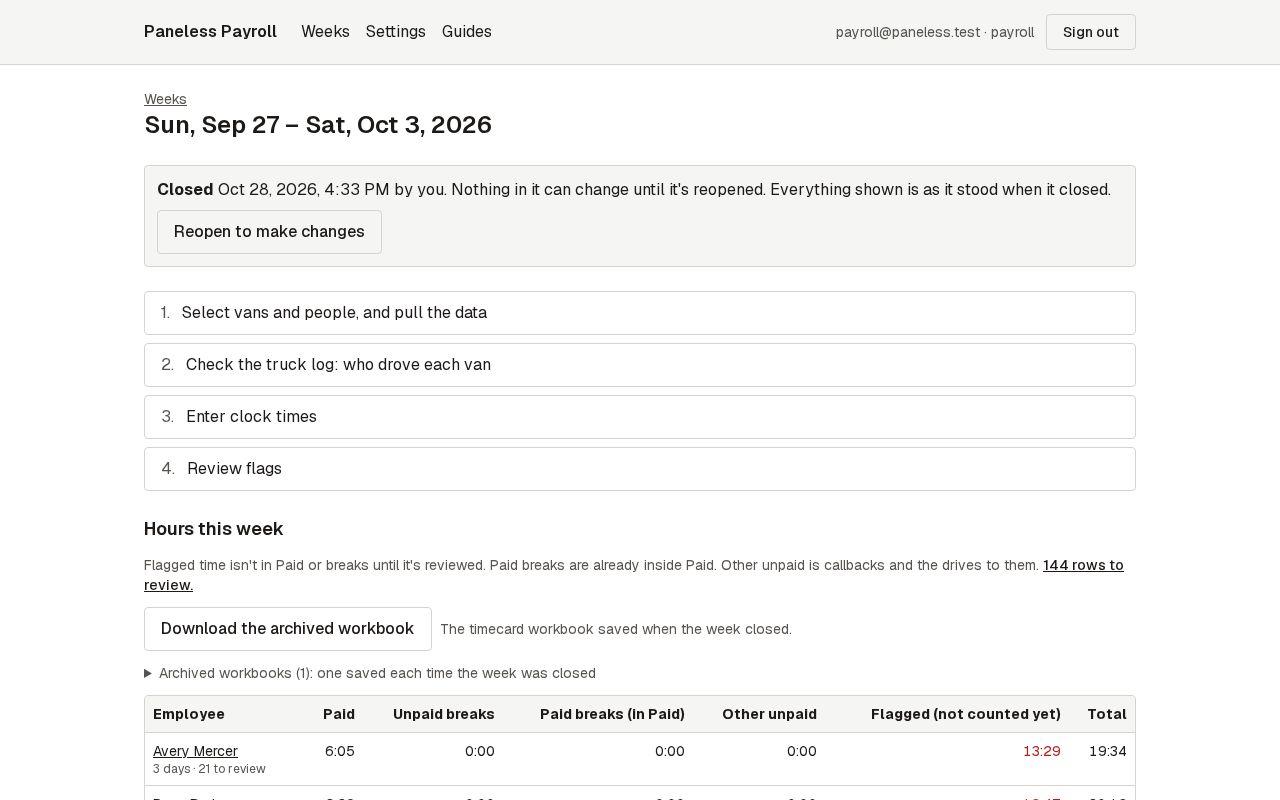
Next guide: Add people and reset passwords