All guides
Add people and reset passwords
Give someone access, reset a forgotten password, or remove access. · Admins
Watch it
Step by step
Step 1: Add a person
In Settings, under Who can sign in, enter their email and choose what they can do: run payroll, run payroll and manage settings and people (admin), or only look. Press Add person.
See the whole screen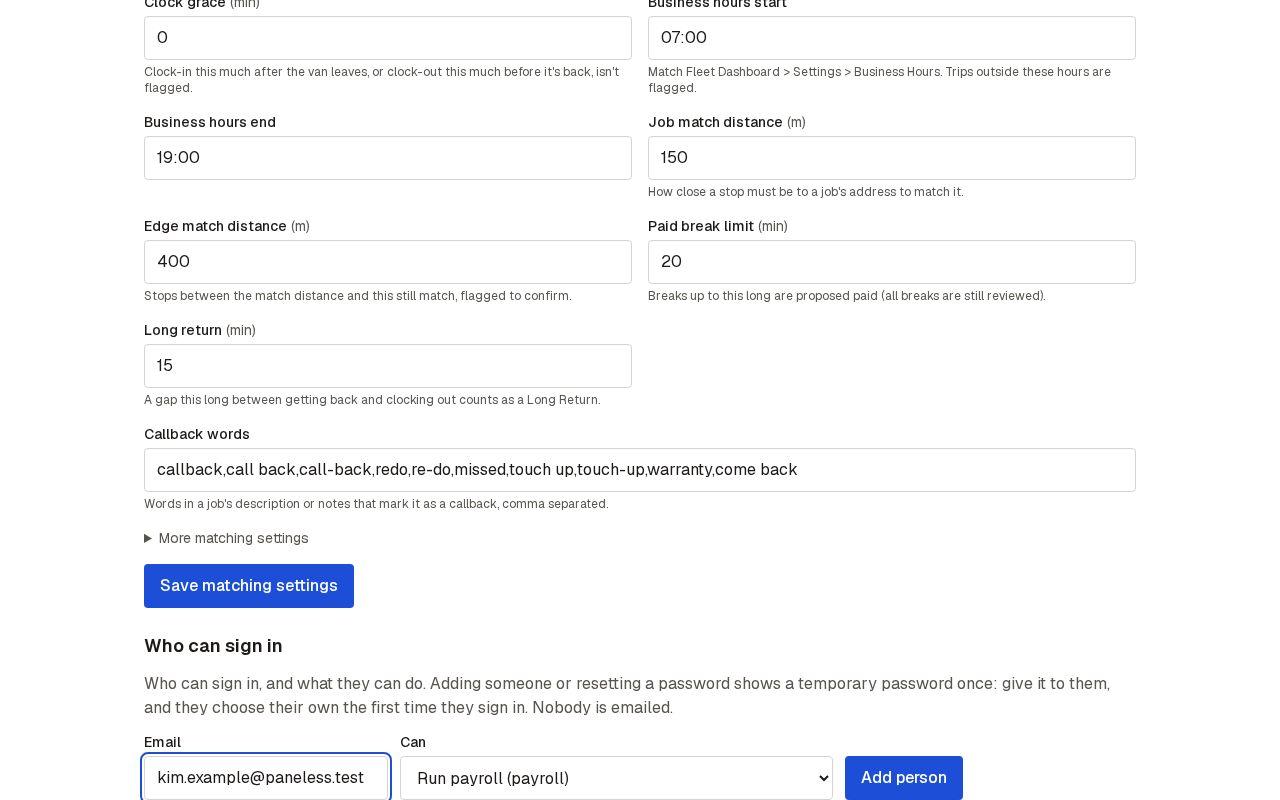
Step 2: Give them the temporary password
The app shows a temporary password once. Give it to them in person, by phone or by text; nobody is emailed. They choose their own the first time they sign in.
See the whole screen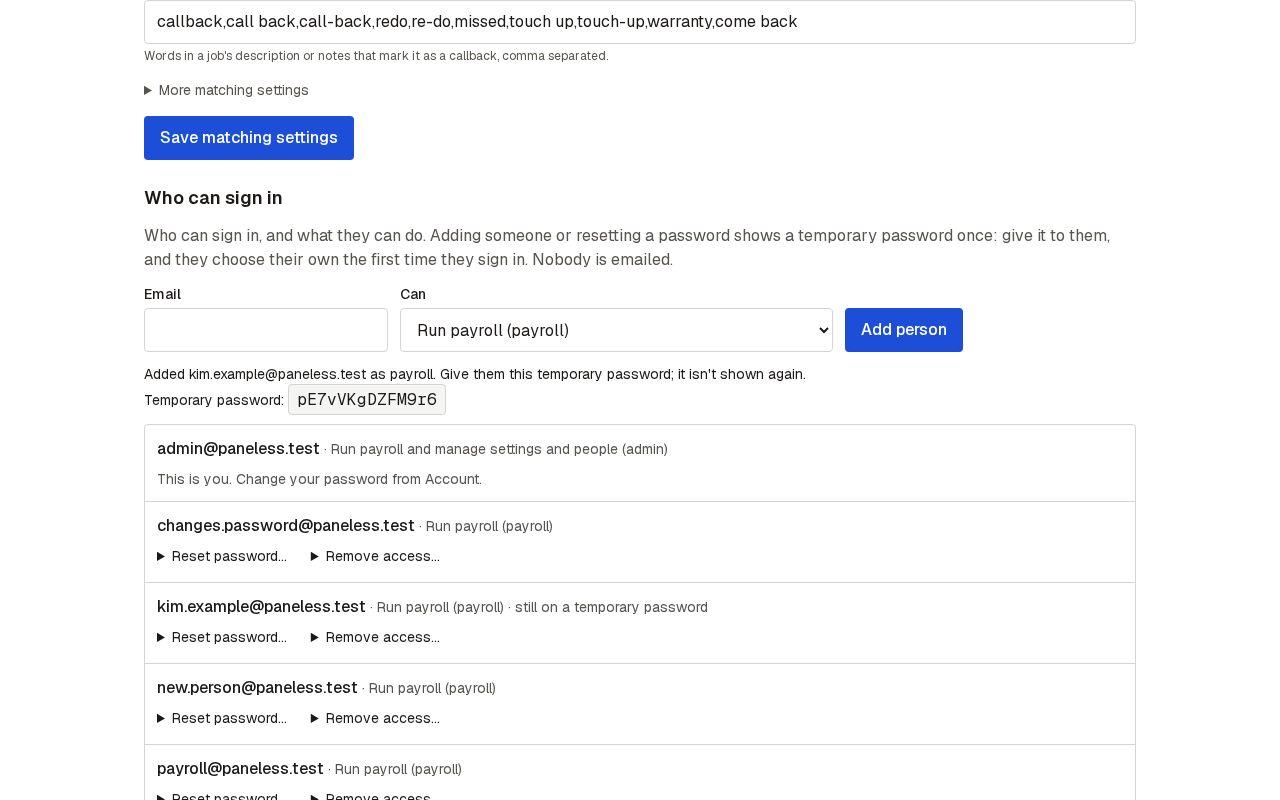
Step 3: Reset a forgotten password
Find the person, open Reset password and confirm. Their old password stops working, and you get a new temporary one to give them.
See the whole screen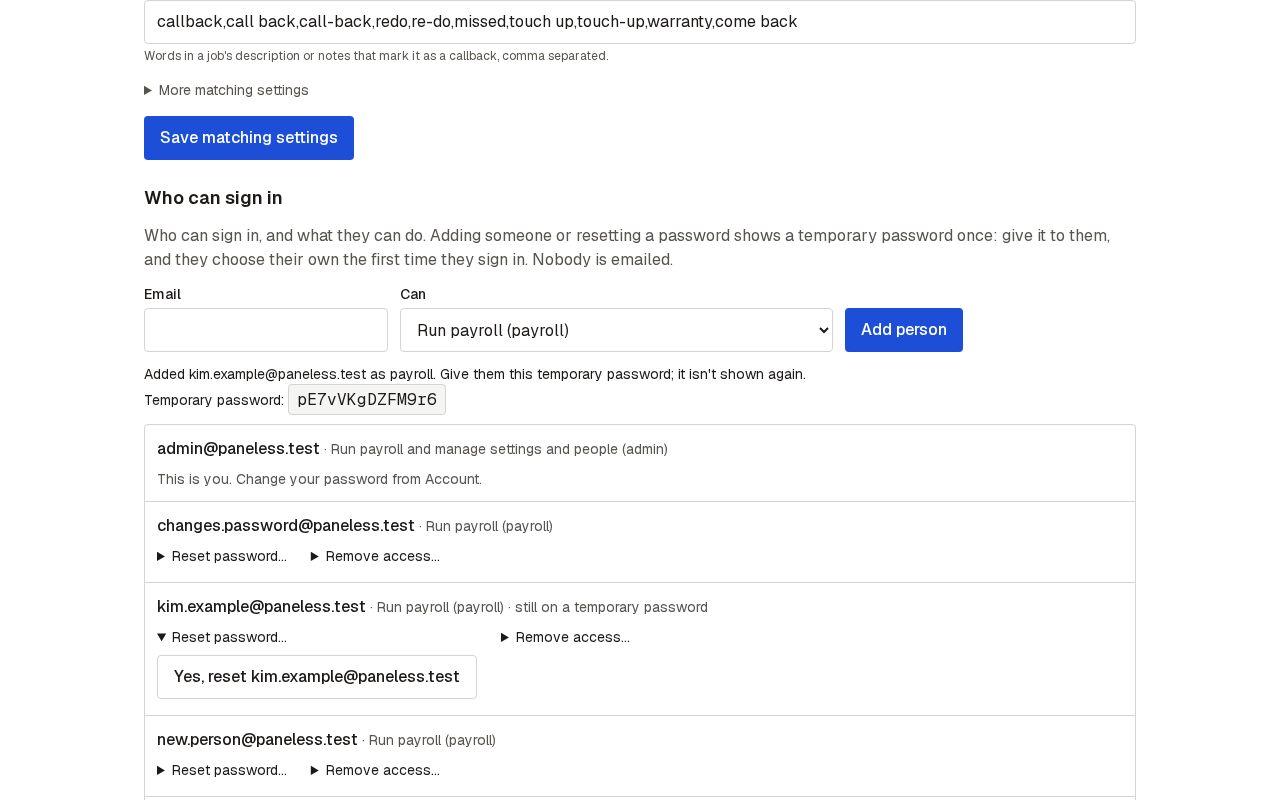
Step 4: Remove someone's access
When someone leaves, open Remove access and confirm. They can't see anything after that; their past changes stay in the history.
See the whole screen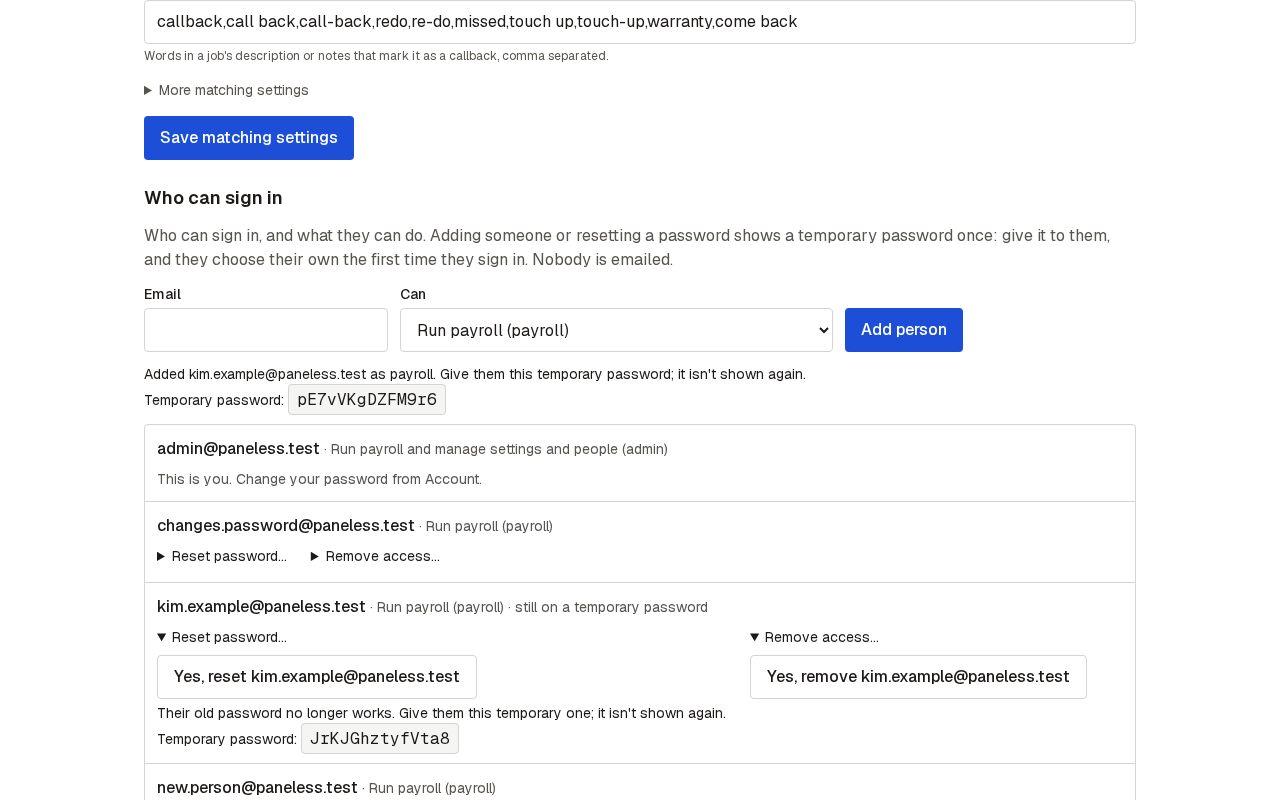
Next guide: Change your password